Coming across windows error codes is really frustrating because you don’t have any idea what’s causing the problem nor Windows provide any information on how to fix it. Error code 0x80070057 is popular for Windows users, and that’s why we decided to write a post that explain the error code in detail and how to fix it.
Troubleshoot and Fix Error Code 0x80070057
What Is Windows Error Code 0x80070057?
Error code 0x80070057 is mostly associated with storage problems, the error code will show up when you’re trying to install updates or when running a new application on your PC. It also appears when upgrading your system to new windows version, like upgrading from Win 7 to Win 10. The error is more popular on Windows 7 and 10.
Most of the time the error code 0x80070057 is shown in three ways;
- Windows update 0x80070057 error code
- Incorrect Parameter 0x80070057 Error
- Microsoft Office 0x80070057 Error
We’ll address how to fix the error code in each of the three scenarios.
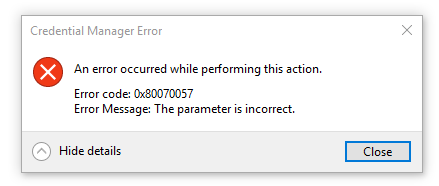
error code 0x80070057
When do Error code 0x80070057 show up?
The error code can be displayed in different situations; the popular ones include;
- During files backup.
- When using a disk partition that’s damaged.
- When creating new profile on Microsoft Outlook.
- During installation of Windows 7 on your computer.
- When trying to install pending updates on both windows 7 and 10.
- It can show up on blue screen of death or a white pop out window.
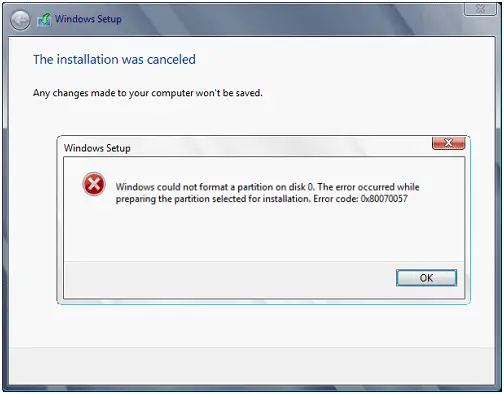
Disk Partition Damaged – Error Code 0x80070057
What Are The Causes Of Error Code 0x80070057?
The common causes include the following;
- Corrupt or damaged Hard Disk Drive or SSD; generally speaking, when there is a problem with your drive even if it’s not damaged or corrupt, the error can be displayed. For example, If you don’t have free space and you tried to install large applications you drive can’t handle at that moment, you’re bound to receive this error code. Error code 0x80070057 can show up when you’re trying to copy files between folders on your computer, this is a sign you’re running out of space, you need to free up some space on your hard drive to fix the problem.
- When you’re trying to backup files on a corrupt disk.
- Attempting to install windows operating system on reserved partition that is corrupt.
- When there is a problem in the registry that’s interfering with windows update.
- Attempting to install updates and the system try multiple times but could not succeed.
Let’s now move on to share how to fix the Error code 0x80070057.
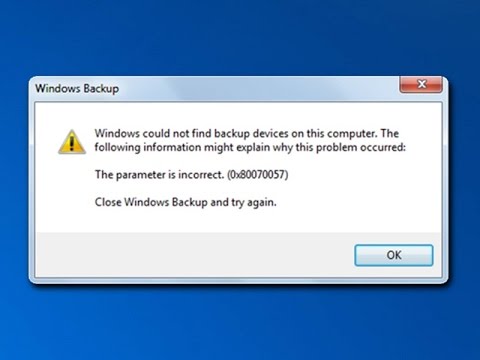
The parameter is incorrect
Fixing 0x80070057 – The parameter is incorrect
Fix No.1: Changing Decimal Symbol
If the decimal symbol isn’t properly set, the error code 0x80070057 arise. This problem happens on windows where the language isn’t set as English (Unite States).
Here is how to change it;
- Open control panel
- Click on clock > Language > Region
- A new window will open and there is the decimal symbol field, type ‘.’, only the dot without the quote.
- Click Ok two times.
- You now restart your computer and see if error code is resolved.
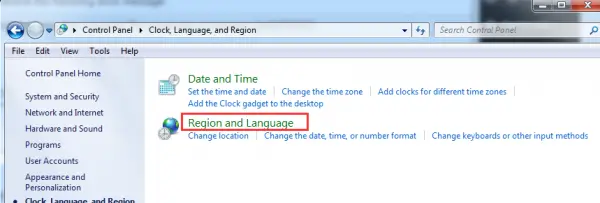
Region and language
Fix No.2: Adding registry Key value
With this method you need to edit and add a registry value, before doing so, don’t forget to backup your registry because when you make the wrong changes, they’re not recoverable, and also you want to make sure you do exactly as mentioned:
- In your computer search box, you should type ‘regedit’, in both Win 7 and 10.
- Follow this path; HKEY_LOCAL_MACHINE\SOFTWARE\Policies\Microsoft\SystemCertificates
- There would be blank space on the right pane, right-click on it and new option will show up, you need to select ‘DWORD’ value.
- The file name that appears, change it to CopyFileBufferedSynchronousIo
- You also change value data to 1 by double clicking on the file.
- Click ok to save your changes.
- Close the registry and restart your PC to check if the error is gone.
Case 2: 0x80070057 Error Code from Windows Updates
This fix is applicable if you’re receiving the error from Windows update.
Solution: Rename SoftwareDistribution folder
- Open the Run Dialogue box by pressing Windows + R key.
- Type ‘%systemroot%’ and click OK, without the quotes of course.
- In the list of folders, you should look for SoftwareDistribution, you should change that to ‘old’.
- You’ll be prompted with administrator permissions, accept to continue.
- Now in the search box, you should also type ‘services’, check windows update status and ensure it’s set as ‘Started’.
- Confirm your changes and restart you PC.
- Check and see if problem is resolved.
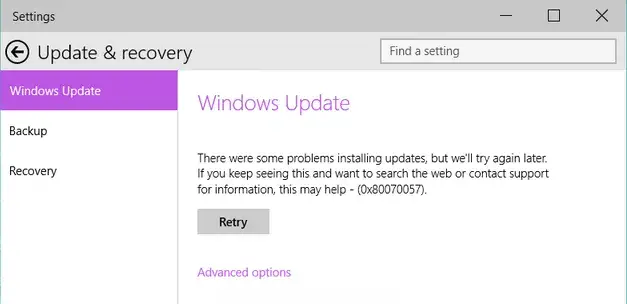
Error Code 0x80070057 on windows update
Case 3: Error 0x80070057 when installing Microsoft Office Suit
The error code 0x80070057 can show up when installing Microsoft Office Suit. And the best fix for this one is by disabling Firewall or antivirus software. They’re responsible for blocking Microsoft installations.
To temporarily disable your Windows firewall, go to; control panel > system and security > Windows Firewall, there is the option that reads ‘Turn Windows Firewall On or Off’, you should select turn off. This action is temporary, after successfully installing Microsoft, you should enable it again to protect your PC, the same also applies to your antivirus software.
More Troubleshoot Options For 0x80070057
If you’re receiving the error code 0x80070057 in other cases other than the 3 cases mentioned above, you now proceed with the following fixes;
Free up your HDD or SSD
Delete all junk files and unused files on your hard drive, clear the recycle bin also because it stores files you’ve deleted. The best way to do this is by using PC cleaners such as CCleaner, instead of doing the job manually, this application will search for al junk files, temporary files in all applications and delete them to free up more space on the hard drive.
All the files found will be displayed, and you can select the ones you don’t want to delete. Uninstall all programs you haven’t used for some time, such as games and movies, check also the download folder, you’ll find large files that are consuming your hard disk space.
Confirm your date and time is correct
Not syncing your computer’s date can cause errors, most browsers will not allow you to load websites when your date is not synced in real-time.
Run your antivirus or antimalware software
If the error is due to malicious files, this will solve the problem.
Update Windows
Outdated windows version can cause Error code 0x80070057, so check for updates using the update and security feature on windows. Search for ‘update and security’, and you’ll be taken through the process.
System update readiness tool
If you can’t install updates it might be that your current windows version or your hard disk can’t accommodate the updates and this is where the system update readiness tool is useful. This tool will determine the intermediary update required before installing the current update. The system update readiness tool is available from Microsoft official website, download and run it, you’ll be taken through the process of fixing the update problem.
Check hard disk errors
You need to check your hard disk to ensure there is no any hardware problem. This can be done with Chkdsk tool, or you can use any third-party software you might have. Search for ‘Chkdsk’ in windows search box and the tool will appear, click on it and you’ll be able to see options to scan your hard disk for errors. Also ensure there is no physical damage, if so, you have to replace your hard drive.
Run DISM tool
This solution is applicable for windows 8.1 or 10 users when they receive the error during update. You should open command prompt on your PC, run as administrator, you then type this command in the prompt window; ‘DISM.exe /Online /Cleanup-image /Restorehealth’ press enter for the command to run. This action will download files that will help fix update problem.
You can also use the SFC scan feature to find corrupt system files, you can do that by typing ‘SFC/scannow’ in the command prompt, don’t forget to press enter. You now restart your computer and try installing the updates to see if the error is gone.
System restores
If things haven’t work by now you should restore your PC at an earlier date, all your system file settings will be restored. Search for system ‘restore’ in your PC and you’ll be presented with the restore options that are available.
System reset
If system restore didn’t work, you need to move on with system reset, this option will reset all settings to default. There are two reset options, normal reset and factory reset. The forma will reset your PC settings while keeping your files, and the latter will erase all files and programs, it’s like a new windows installation. So choose the one you’re more satisfied.
Format your disk partition
If you’re using disk partition and up till now you haven’t fixed error code 0x80070057, you should format your disk, this will clean the disk for any potential errors.
Get yourself a new HDD or SSD
If after installing windows and you’re still receiving the error, it means there is definitely something wrong with your disk and you need to replace it or take it for repair.
These are so far the best fixes to the error code 0x80070057. If you think we’ve missed another method of fixing this error code, please do share in the comment box so that our readers can discover more solutions to the problem.